

You have already told Claude Code how you like to work. Do you have to explain it all again when you switch to Codex or start another project?
In our OpenViking × Agent Harness session on August 28, we started with a local installation and connected OpenViking to everyday AI coding tools, showing how preferences and experience from conversations can carry over between them. The written guide and recording are ready for developers who want to get started or check whether memory is actually working.
Tell Claude Code once, then pick up in Codex
We used two Python projects with different purposes. In project A, we told Claude Code a few development preferences: a line length of 120, pytest for tests, test files named *_spec.py under tests/, and commit messages in Chinese.
After completing the task, archiving the conversation, and extracting its memories, we switched to Codex in project B and asked:
Add linting and test configuration to this Python project, following my usual preferences.
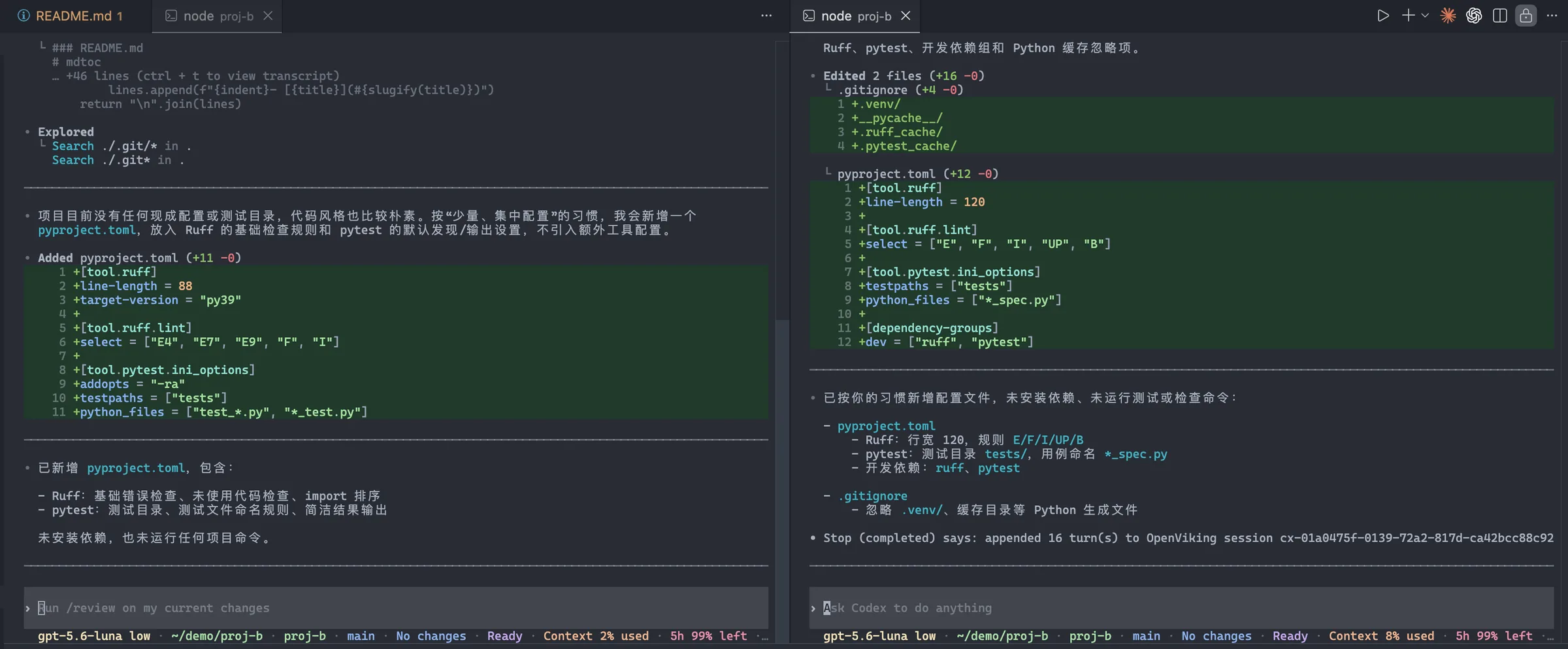
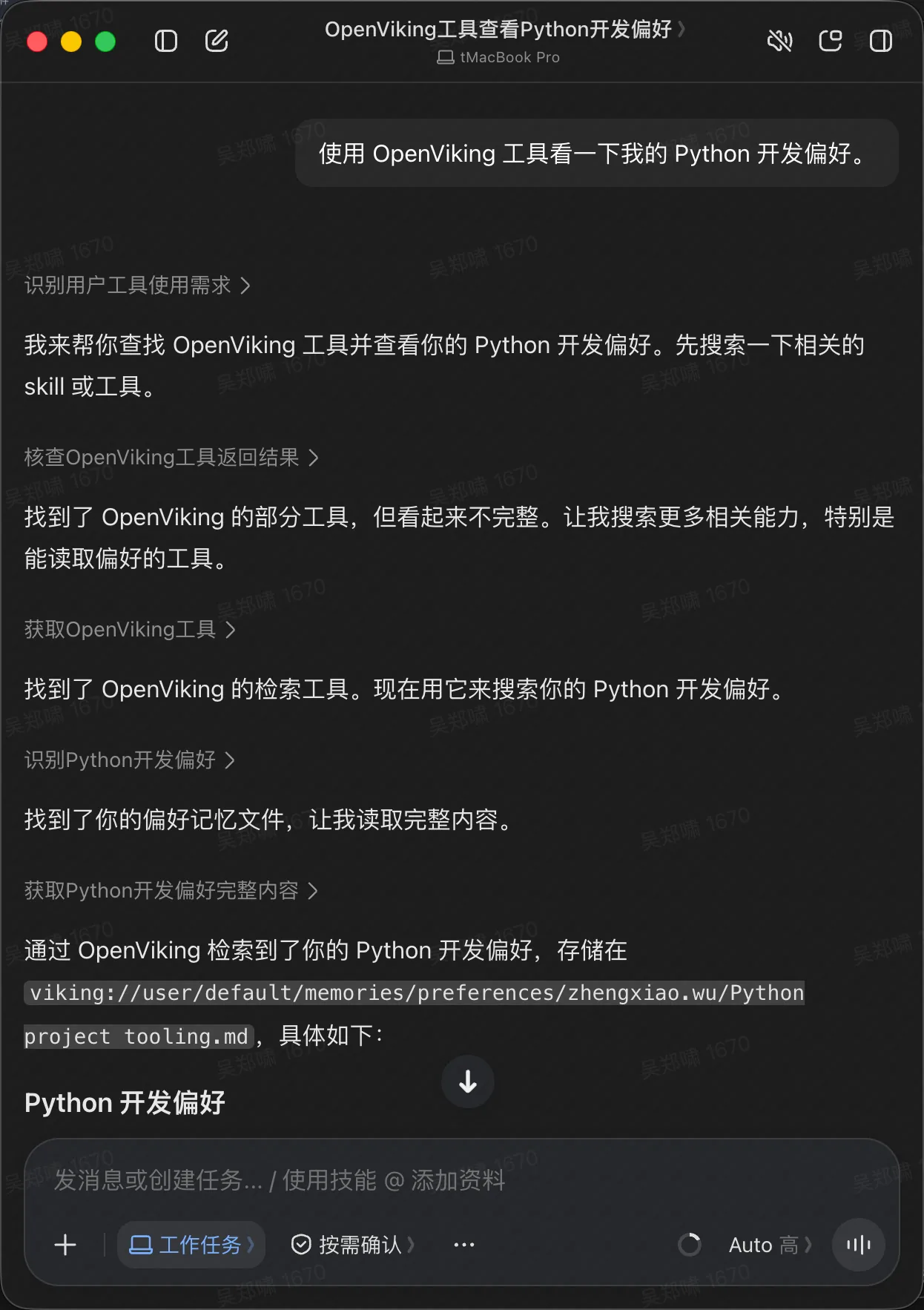
The development preferences appeared in Codex’s automatic recall record, and its Ruff and pytest configuration followed them. OpenViking Helper also let us trace which memory file was retrieved and inspect the content injected into the conversation.
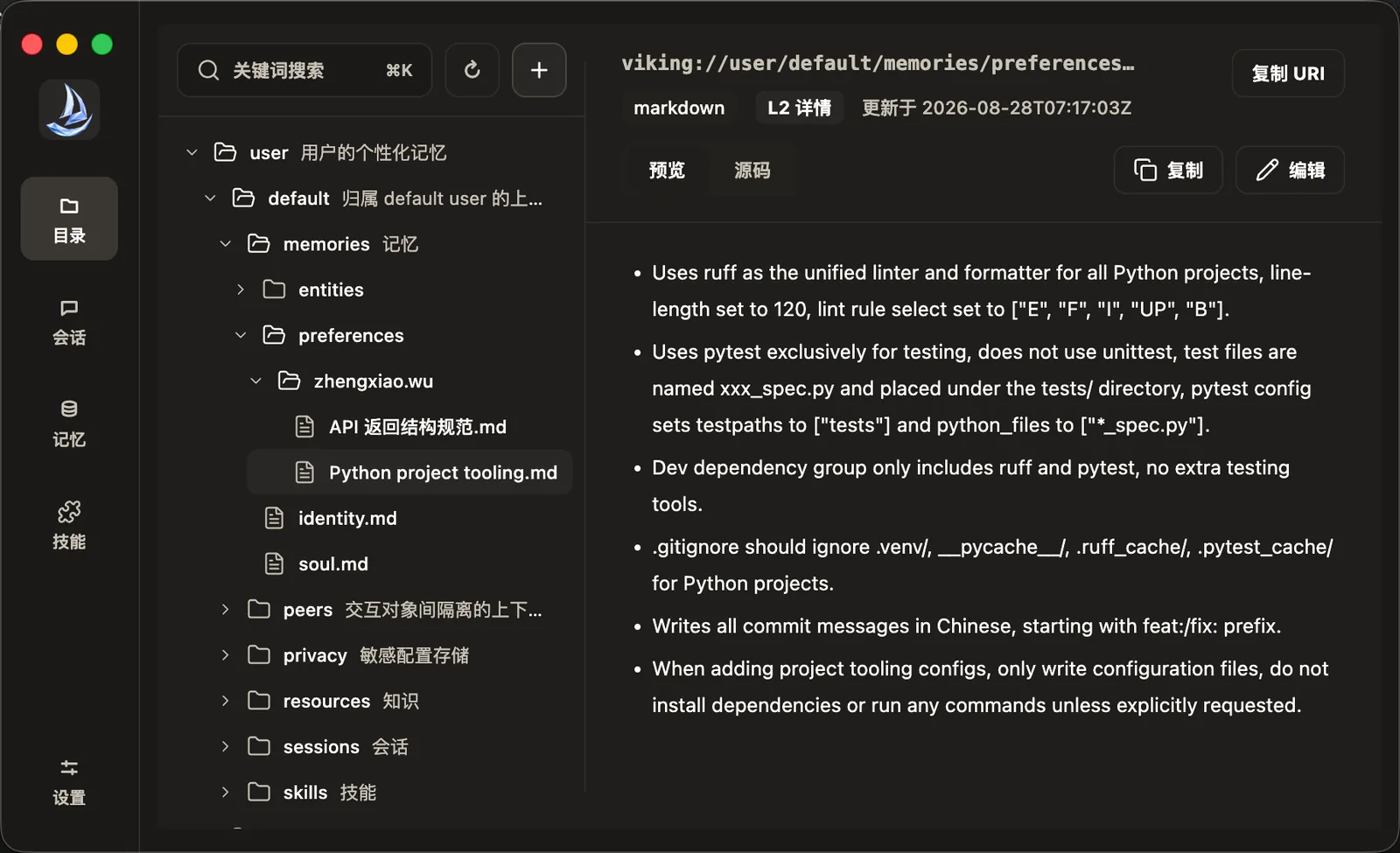
Two details surfaced during the demo. Uploaded conversations still needed archival and background extraction before their memories became available. Codex without OpenViking also found the preferences by reading a neighboring project. The recording includes both moments and shows how to inspect memory files and recall records to establish where the information came from.
What else is in the session?
Dedicated integrations use hooks to recall and capture content at key points in a conversation. Clients connected only through MCP (Model Context Protocol) can access the same memory, but the model or calling application must invoke the tools. We demonstrated both approaches, along with remote access and multiple users on a self-hosted server.
Use these timestamps to find the parts you want to watch:
| Starts at | Topic |
|---|---|
06:30 | Install OpenViking, configure models, start the server, and open Studio |
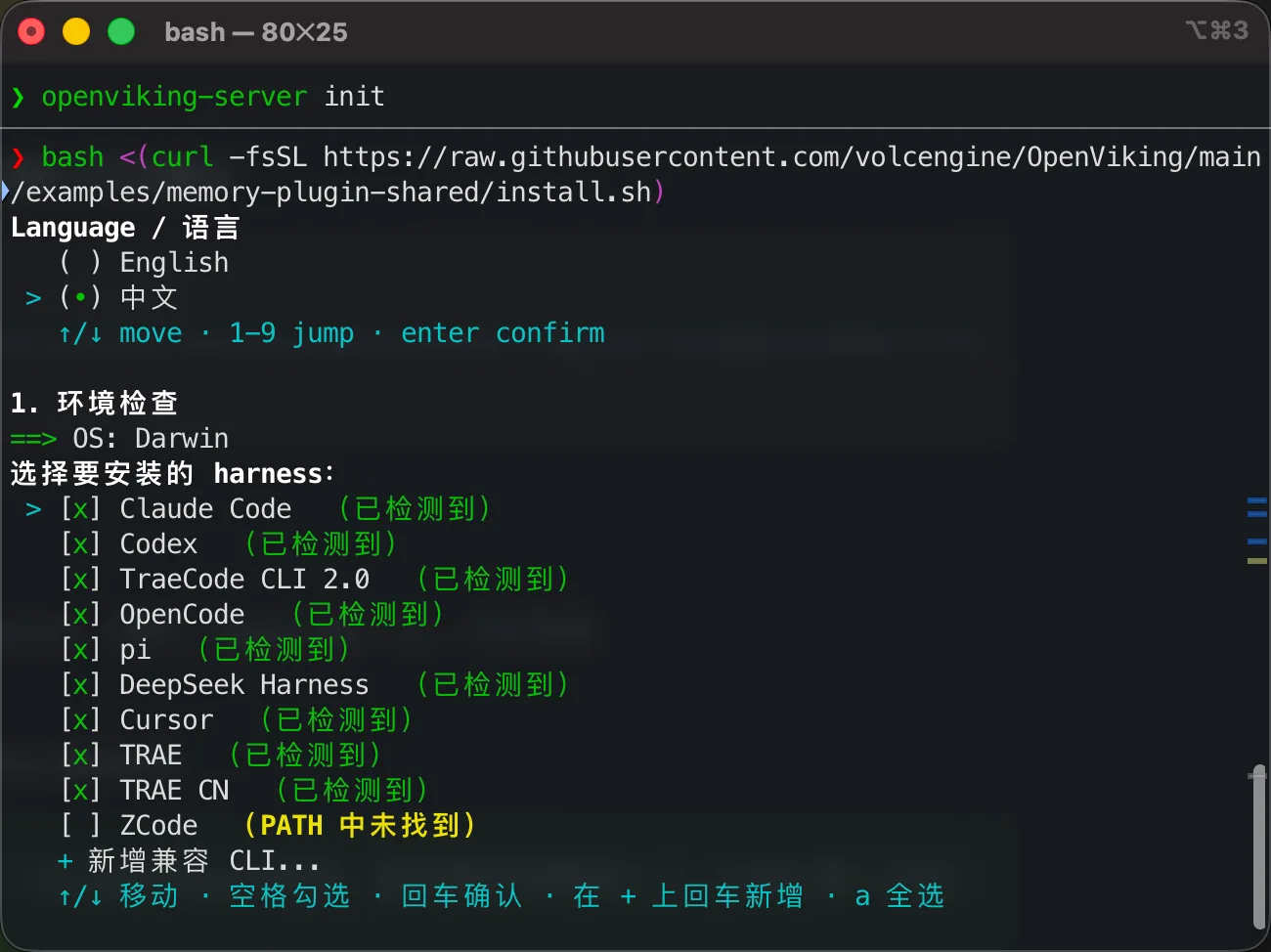
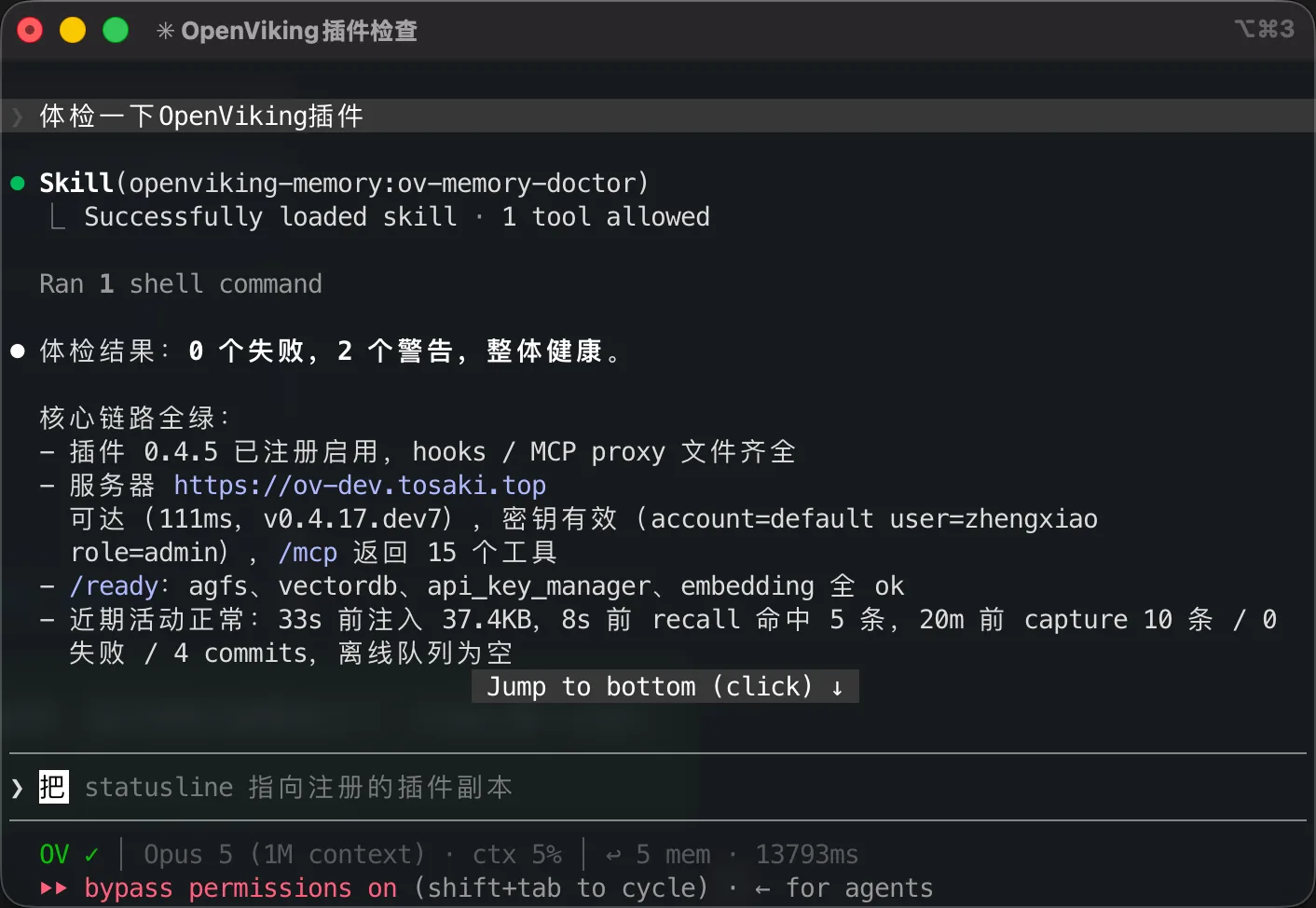
13:30 | Connect Claude Code and Codex with the shared installer, then check plugin status |
15:55 | Try memory across two Python projects and inspect extraction and recall |
30:05 | Retrieve the same development preferences through an MCP client |
37:10 | Set up remote access, create users, and work with personal memory and shared resources |
Questions throughout the demo covered when long conversations are archived, how memory can be shared within a team, how to correct a mistaken memory, and how to temporarily turn off automatic memory. The accompanying guide includes installation commands, configuration details, and frequently asked questions.
Start with one development preference
For a first try, use line length and test naming. Explain your preferences in one tool, check that memory extraction has finished, then switch tools and projects and ask it to follow your usual conventions. A few lines of configuration are enough to see how memory is saved and used again.
Follow the guide to connect OpenViking, or watch the full recording, starting with the demo across tools at 15:55. Both resources are in Chinese.